Forgot Username or Password
If you need to retrieve your user name or reset your password, follow the instructions below. If these instructions do not resolve the issue or if you have other issues not covered here, contact your practice.
Forgot Username
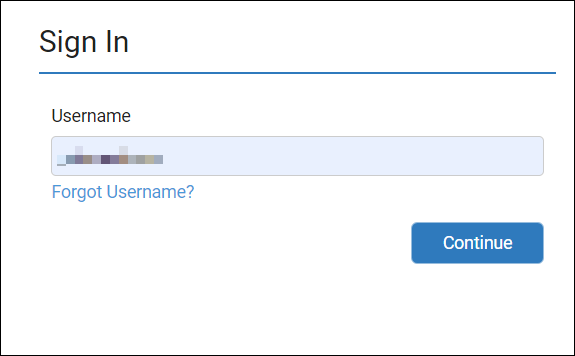
If you forgot your username, select Forgot Username on the MyHealthRecord.com Sign In page.
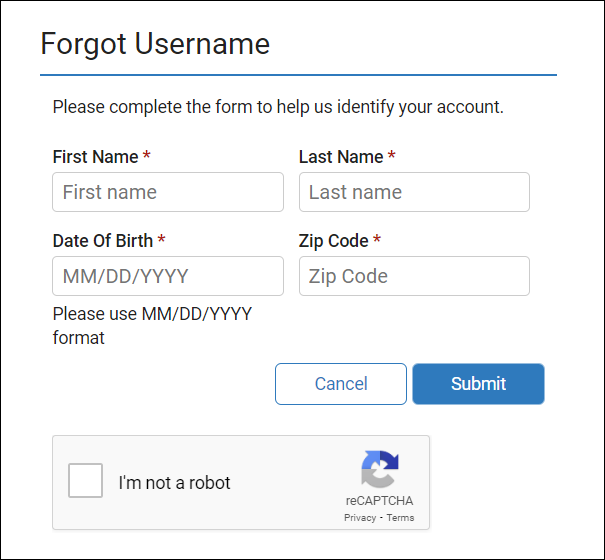
On the next screen, fill in the required fields (First Name, Last Name, etc.), select the check box next to "I'm not a robot", and then select Submit.
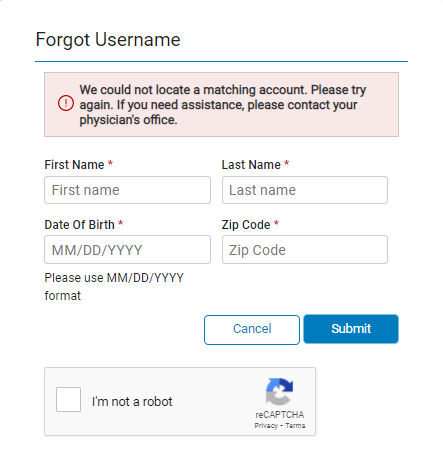
If you enter information incorrectly, you will get a warning message.
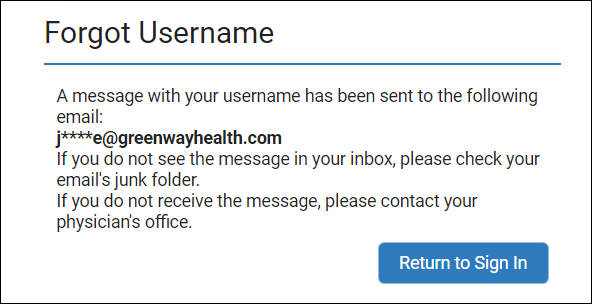
After you select Submit, you will get a message notifying you that an email has been sent to your email address. The email will contain your username.
Select either Return to Sign In or the link to MyHealthRecord.com in the email to return to the Sign In screen. Enter your username and password and select Continue.
Forgot Password
If you forgot your password, enter your username and then select Continue.
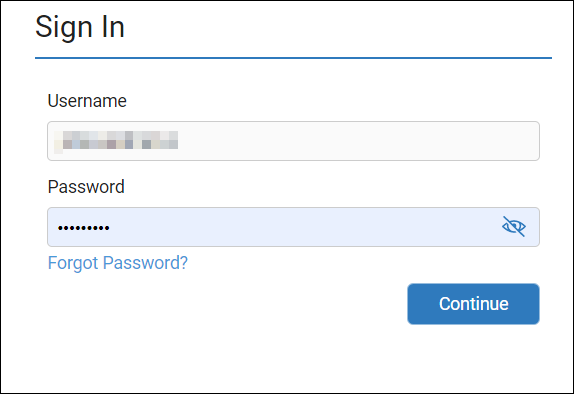
Select Forgot Password below Password field.
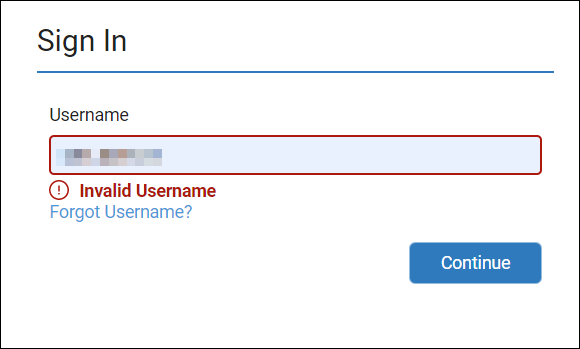
If you enter in the wrong username, you will see the message "Invalid Username" Reenter your username and then select Continue. If you continue to have difficulty, contact your provider.
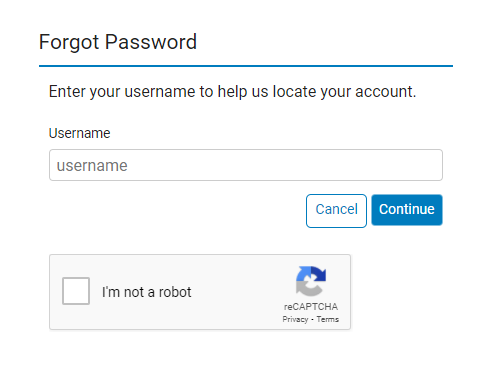
In the next screen, check the box next to "I'm not a robot", and then select Continue. Your username will automatically populate since you entered it in the previous screen.
Next, provide the answer to your security questions and then select Submit. If you cannot remember your answers, contact your provider. To learn how to configure your security questions see the My Account Settings topic.
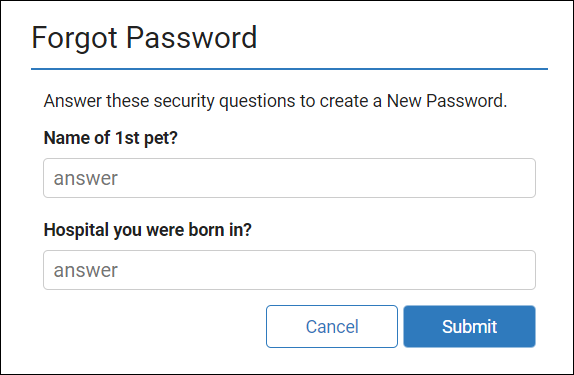
After answering your questions correctly, you will get a message notifying you that a password reset link has been sent to the email address on file. To reset your password, select the link in your email.
To go back to Sign In page, select Return To Sign In.
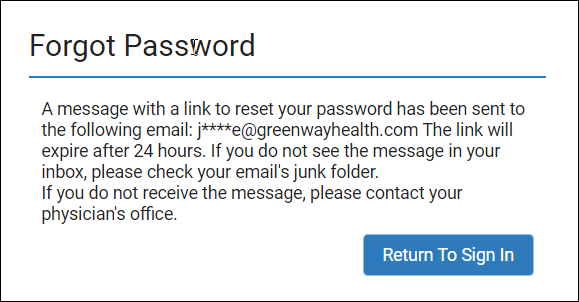
The password reset link in the email will expire after 24 hours.
Enter your new password and confirm it. Be sure to follow the following password requirements:
- Passwords should be between 8 and 64 characters.
- Special characters may be included, but are not required.
- Users are not allowed to use their current password when resetting or changing their password.
Select Reset Password.
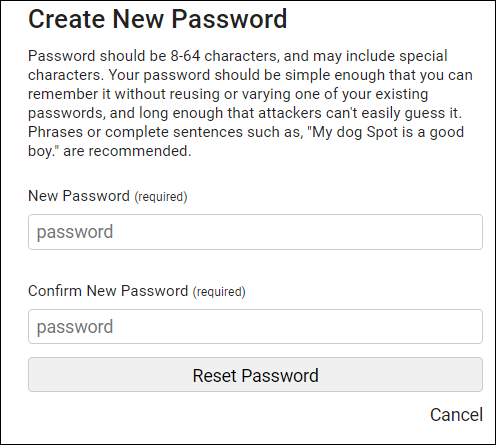
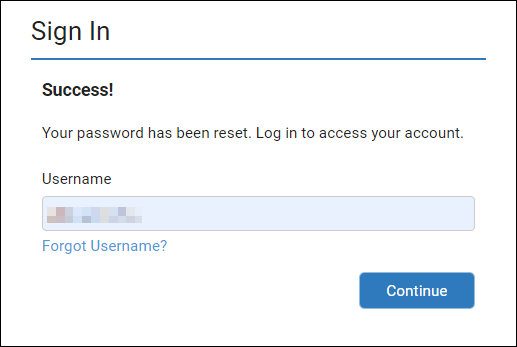
You will then see a success message. You will also receive an email stating that your password has been reset.